
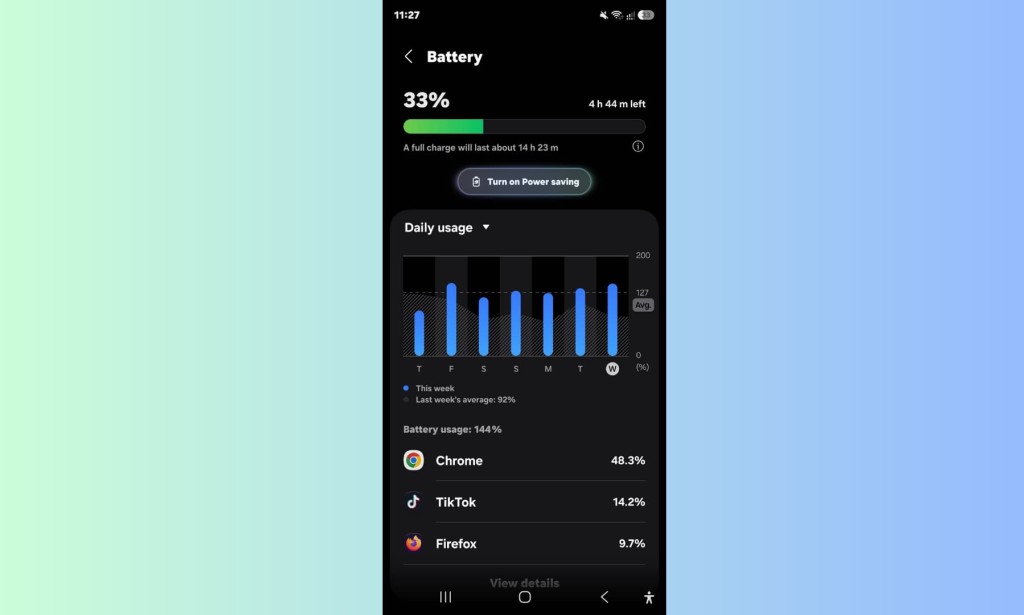
If your Samsung Galaxy phone is losing charge faster than it used to, or wireless charging has become noticeably slower, you are not alone. Both problems are common across the Galaxy lineup and most of the time they have straightforward solutions that do not require a service center visit. This guide covers every practical fix in the order you should try them.
Check What Is Actually Draining Your Battery First
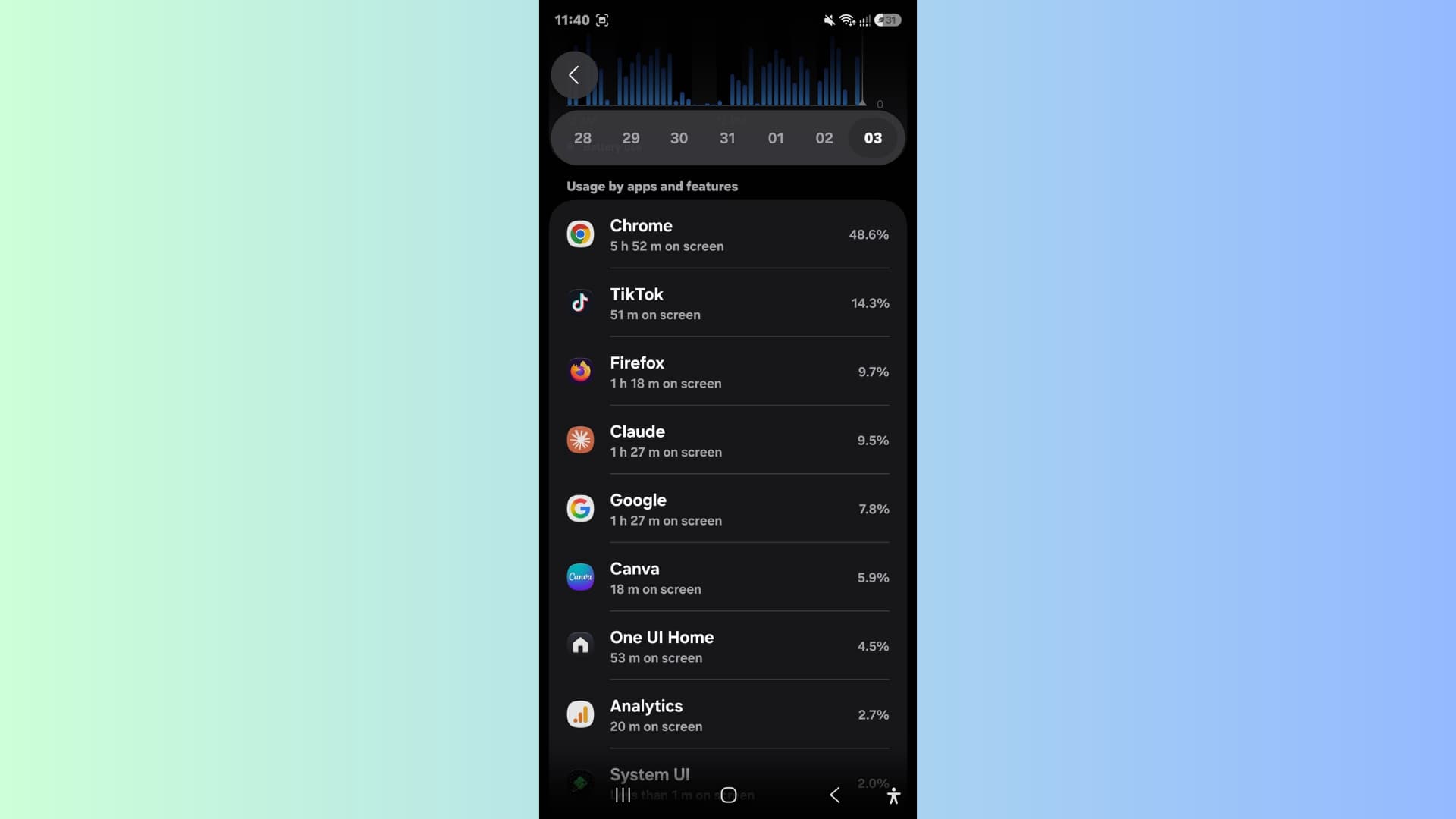
Before changing any settings, you need to know where the charge is going. Open Settings, tap Battery, then tap Battery usage. This shows a breakdown of every app and system process and how much battery each one has consumed over the past 24 hours or since the last charge. Look for anything that seems unusually high — a social media app running in the background, a location-based service, or a system process consuming more than expected. This one step tells you whether the drain is coming from an app you can manage or from something lower in the system.
Turn Off Always-On Display If You Do Not Need It
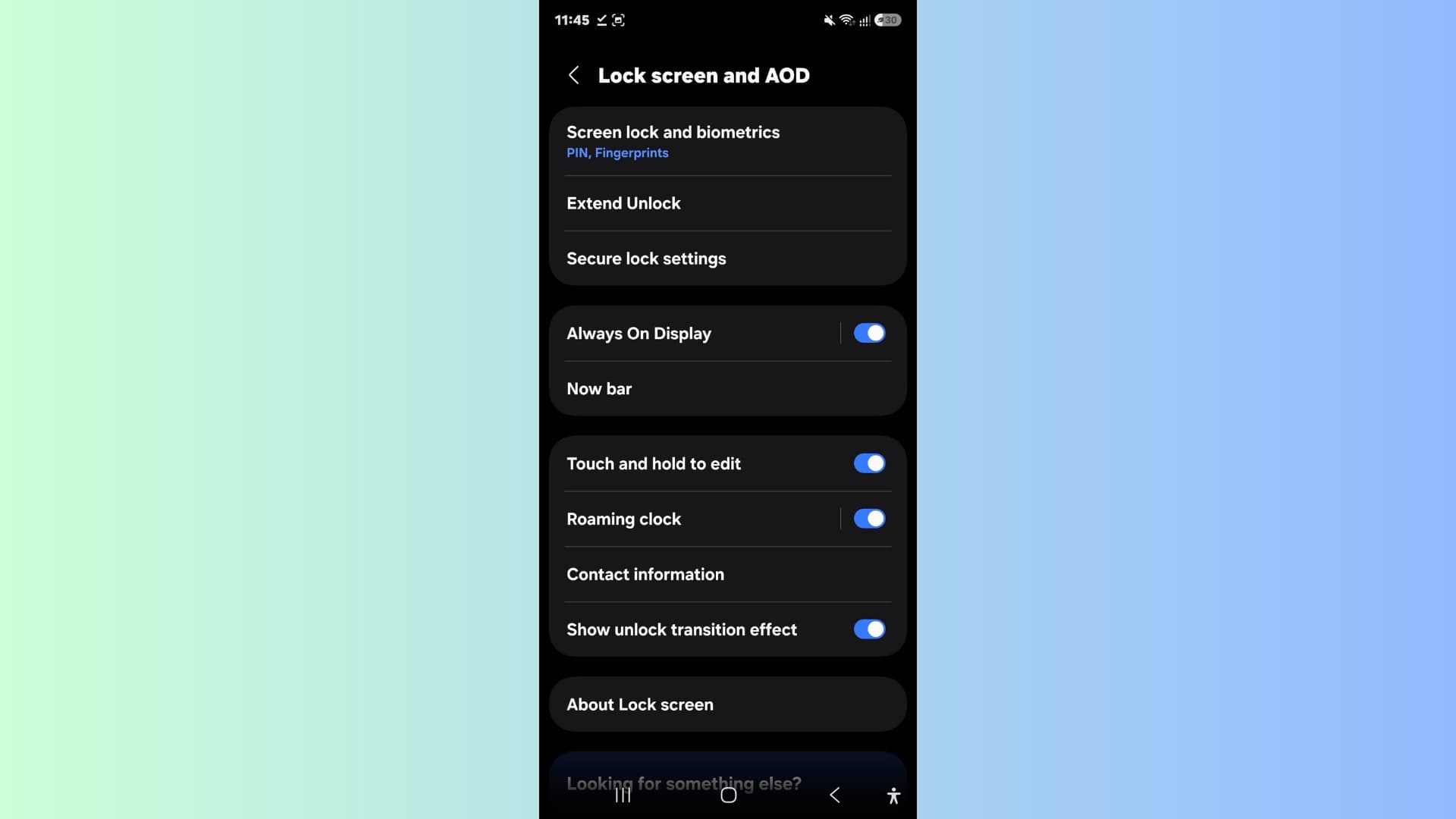
Always-On Display keeps your screen partially active all the time, showing the clock, date, and notifications without requiring you to wake the screen. It is genuinely useful but it does cost battery — typically around 3 to 5 percent per hour depending on the brightness setting and what it is displaying. If your phone is regularly in your pocket or bag where you cannot see the Always-On Display anyway, turning it off is one of the fastest ways to recover meaningful battery life.
To turn it off, go to Settings, then Lock screen, then Always On Display, and toggle it off. If you want to keep it but reduce consumption, switch it from the default continuous mode to Tap to Show, which only activates the display for 30 seconds when you tap the screen.
Reduce Screen Refresh Rate When You Do Not Need 120Hz
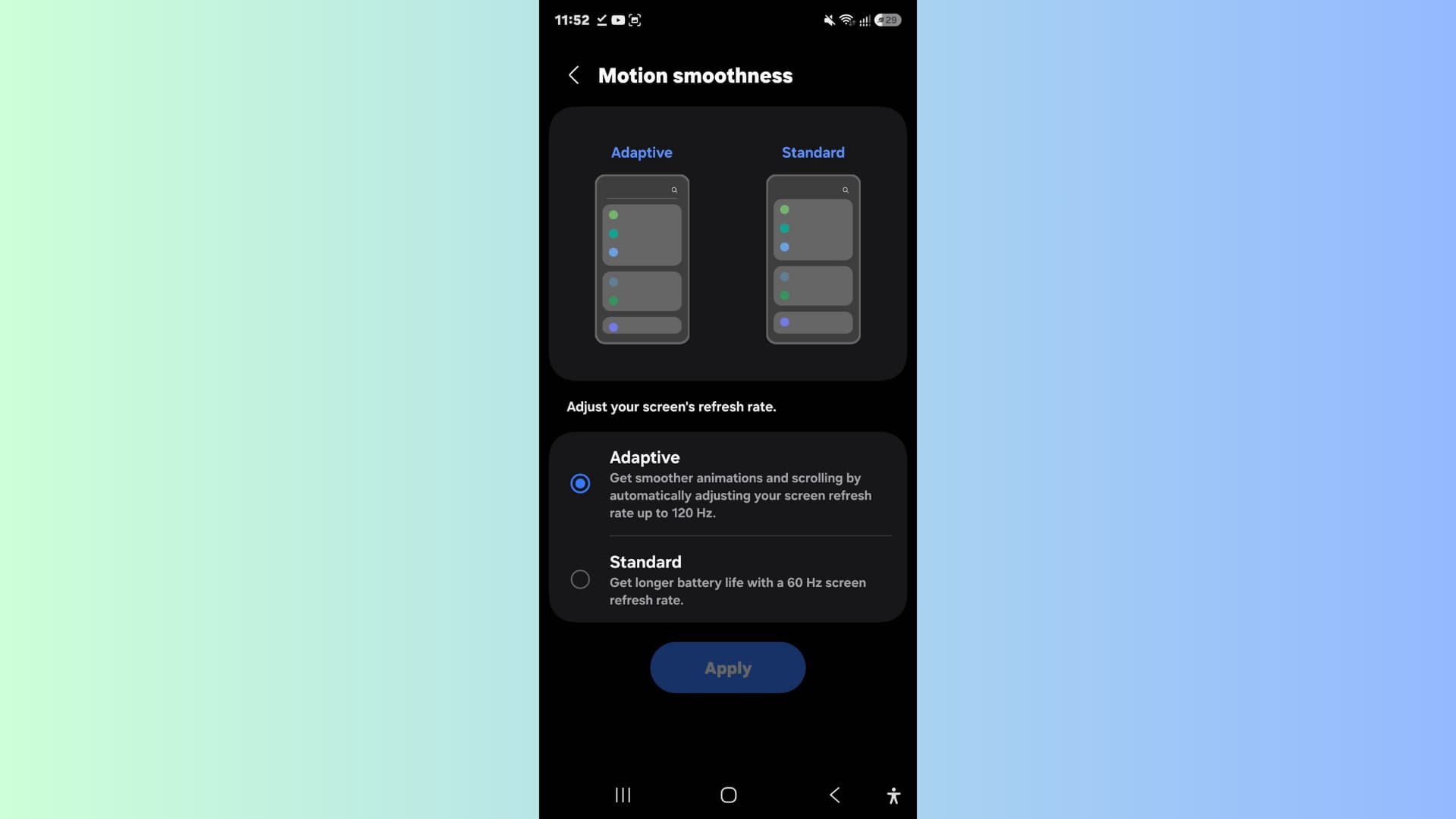
High refresh rate displays are one of the biggest contributors to battery drain on modern Galaxy phones. Running at 120Hz constantly — even when scrolling a static page or watching a video at 30fps — burns significantly more power than 60Hz. Most Galaxy phones with 120Hz displays allow you to manage this.
Go to Settings, then Display, then Motion smoothness. You will see two options: Adaptive, which automatically adjusts the refresh rate based on content and activity, and Standard, which locks at 60Hz. Adaptive is generally the right choice for most people because it uses 120Hz when it is genuinely useful and drops to lower rates when it is not. If you want maximum battery savings and are willing to sacrifice smoothness, switching to Standard can add between one and two hours of screen-on time per charge.
Check and Manage Location Access
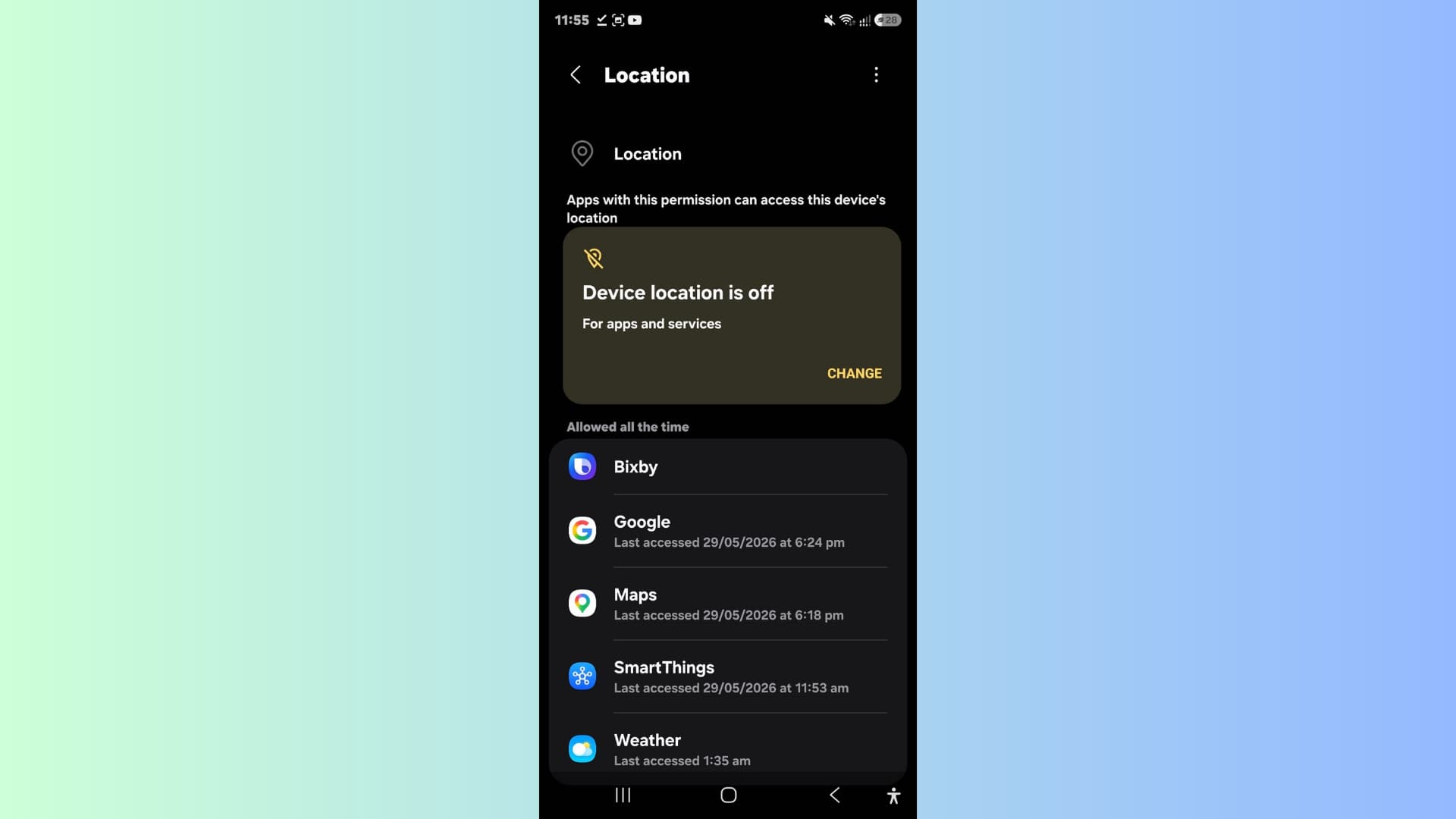
Location services are one of the most persistent hidden battery drains because apps can request location data in the background without any visible activity on screen. Go to Settings, then Location, and look at the Recent location requests section. If any app is listed there that does not legitimately need your location — a calculator, a photo viewer, a game — you should either deny location access entirely for that app or restrict it to Only while using the app.
Social media apps and third-party browsers are the most common culprits. Changing them from Always allow to Only while using the app can make a noticeable difference over the course of a full day.
Disable Wi-Fi Scanning and Bluetooth Scanning
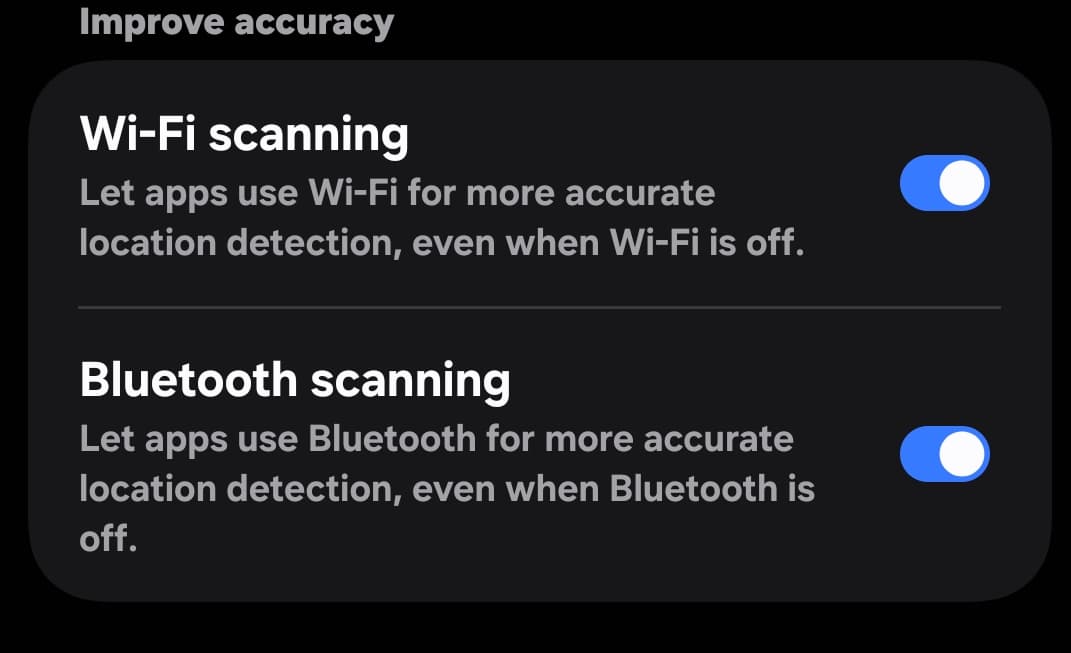
Even when Wi-Fi is turned off, some Samsung Galaxy phones continue scanning for nearby Wi-Fi networks to improve location accuracy. The same applies to Bluetooth. These background scans are invisible to most users but they run continuously and consume battery.
To disable them, go to Settings, then Location, then Location services. You will see Wi-Fi scanning and Bluetooth scanning listed as toggles. Turn both off. Location accuracy will rely on GPS only when these are disabled, which is more than adequate for most everyday navigation and app usage.
Fix Slow Wireless Charging: The Most Common Causes
Wireless charging on Samsung Galaxy phones supports fast wireless charging at speeds up to 15W on compatible chargers. If yours feels slow, there are a few specific causes worth checking in order.
The first is the charger itself. Not all wireless chargers support Samsung's fast wireless charging speeds. A standard Qi charger will charge your Galaxy phone but typically at 5W or 7.5W rather than the 15W the phone is capable of. If you want full-speed wireless charging, use Samsung's own wireless charger or a third-party pad that explicitly supports Samsung Fast Wireless Charging.
The second is case thickness. Wireless charging degrades with distance between the coil in the phone and the charging pad. Most cases up to 3mm thick are fine, but bulky cases, wallet cases with multiple card slots, or cases with metal components can significantly reduce charging speed or stop wireless charging from working at all.
The third is the fast wireless charging toggle itself. Some Galaxy phones have fast wireless charging as a separately enabled setting rather than always on. Go to Settings, then Battery, then More battery settings, and check whether Fast wireless charging is listed and enabled. If the toggle is there and turned off, switching it on will restore full charging speeds.
Turn On Adaptive Battery
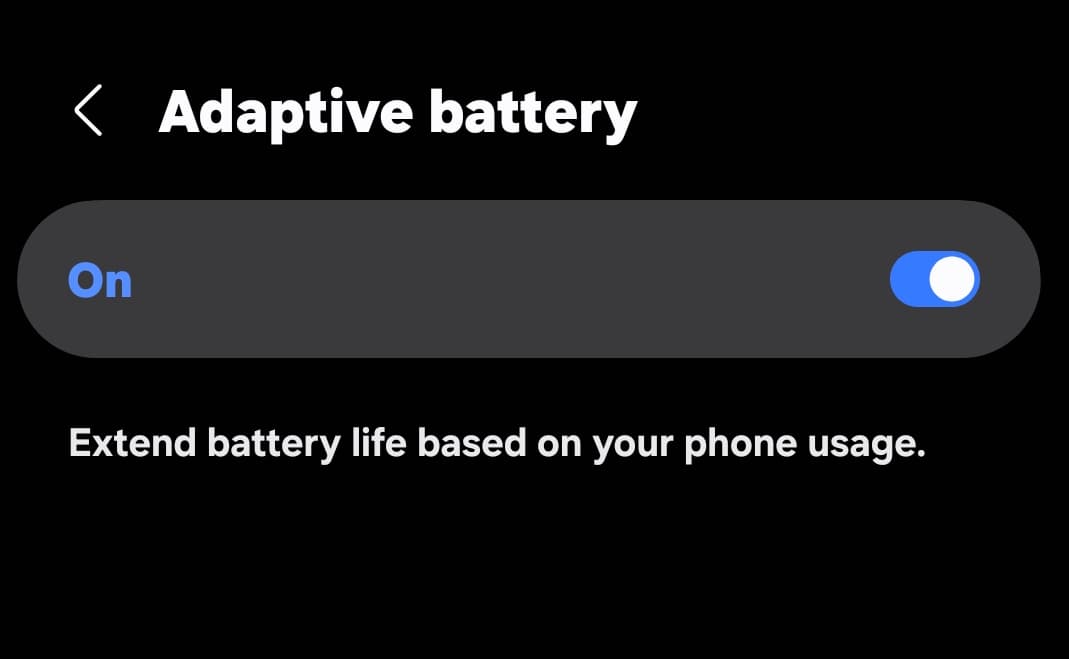
Samsung's Adaptive Battery feature uses AI to learn your daily phone usage patterns and restrict background activity for apps you rarely use. Over several days of use, it identifies which apps you open regularly and which ones you have not touched in weeks, then limits background processing for the unused ones without affecting the apps you actually use.
To make sure it is enabled, go to Settings, then Battery, then Adaptive battery, and toggle it on. The feature becomes more effective the longer you use it — give it a few days after enabling before judging whether it is making a difference.
Enable Power Saving Mode for Longer Days
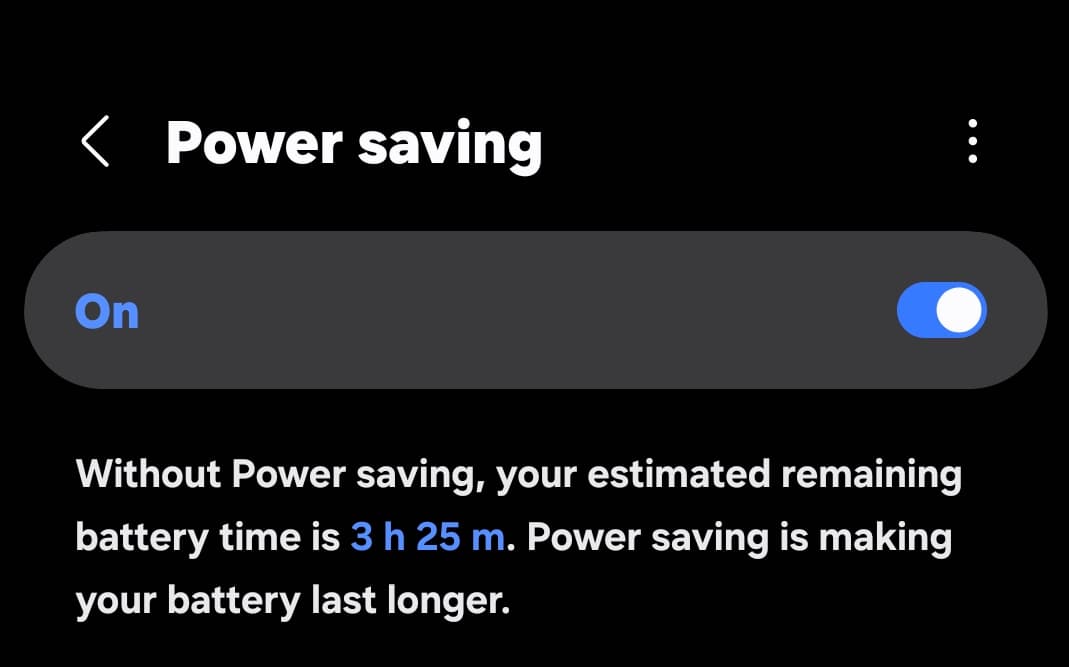
Power Saving mode in One UI reduces background activity, limits some visual effects, and restricts certain features to extend battery life significantly. It is not an always-on setting — it is most useful on days where you know you will not have access to a charger for an extended period.
To enable it, go to Settings, then Battery, then Power saving, and toggle it on. You can also configure it to activate automatically when the battery reaches a specific percentage — 15% or 20% are common choices. This ensures the phone shifts to power saving mode before the battery gets critically low rather than after.
Check Battery Health in Device Care
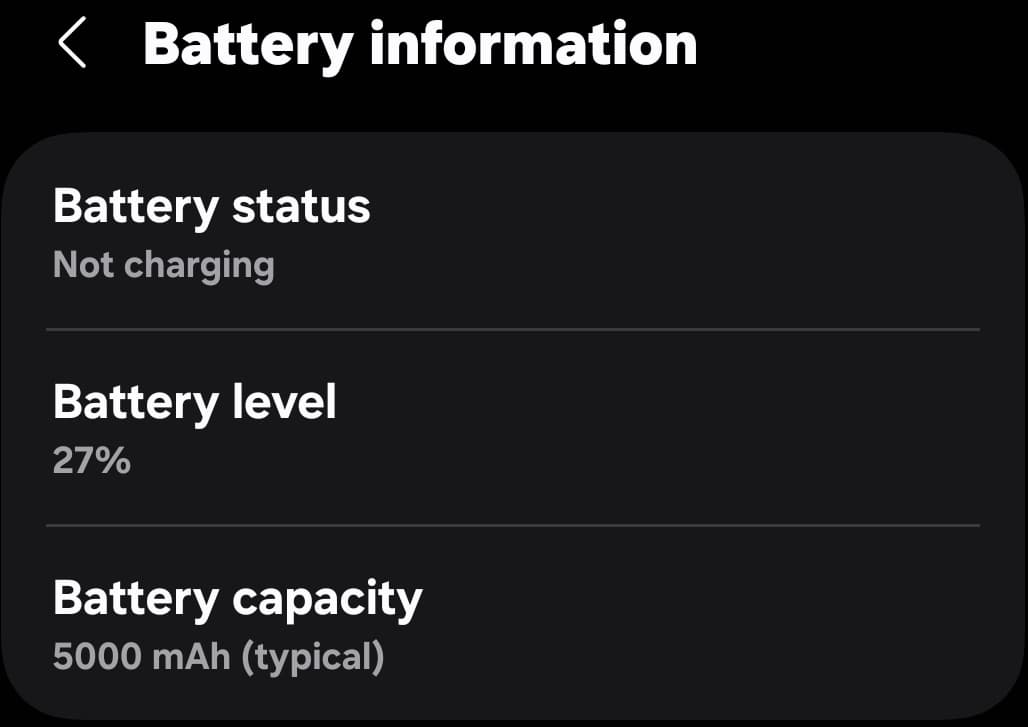
One UI 8.5 added a more detailed battery health indicator in the Device Care section that gives clearer information about your battery's current capacity relative to its original specification. If the battery health indicator shows significant degradation — typically described as needing attention or replacement the fast drain you are experiencing may be a hardware issue rather than a software one.
Go to Settings, then Battery, and look for the battery health or battery protection section. If your battery shows poor health and the phone is more than two years old with heavy use, a genuine battery replacement through an authorized Samsung service center is often more cost-effective than managing around a degraded cell.

You must be logged in to post a comment.